

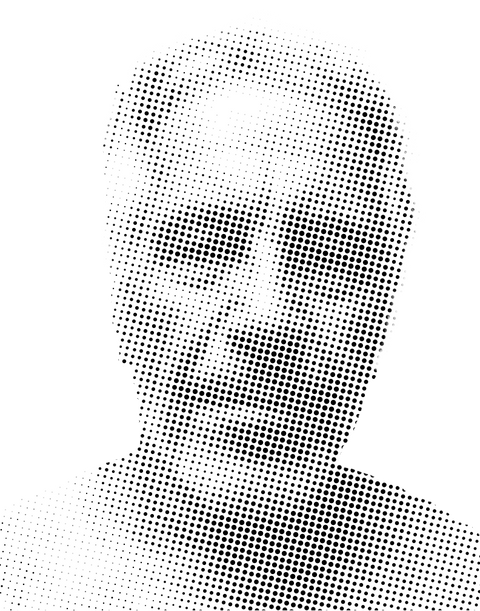
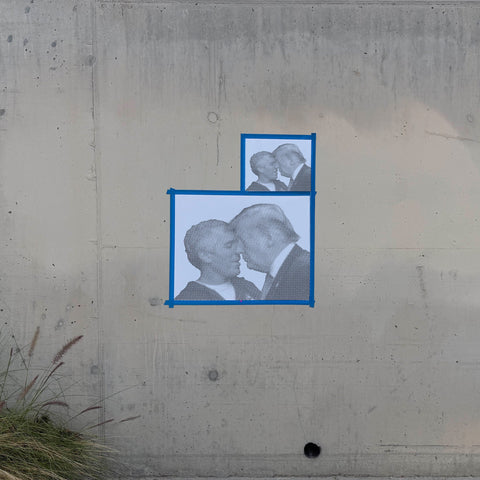
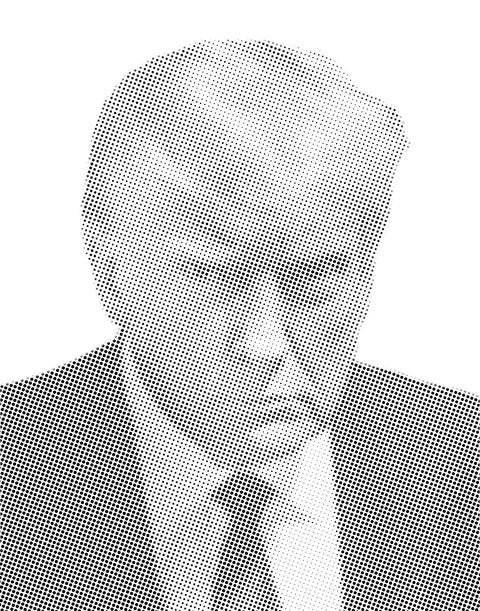
You've seen those stencils that look like photographs. The ones where a face emerges from thousands of tiny dots, every halftone circle placed so precisely that from five feet away it reads like a black-and-white print. Then someone tells you it was spray-painted through a laser-cut sheet of mylar and your brain short-circuits a little.
This is a halftone stencil. And you can make one in Photoshop.
This is the actual process — not a theory guide, not a "Top 10 Photoshop Filters" listicle. This is exactly how halftone stencils get made, step by step, from a photo on your screen to a file that's ready to cut and spray.

What Halftone Stencils Actually Are
A halftone is a reproduction technique that simulates continuous tones using dots of varying size. Large dots create dark areas. Small dots create light areas. No dots means white. Your brain blends them into smooth gradients from any reasonable viewing distance.
Newspapers have used halftones since the 1880s. Pop art made them famous. And stencil artists realized that halftone patterns are perfect for stencils because every dot is a discrete, isolated shape — no bridges needed between tones. Each dot is its own island. Cut the dots out, spray through the holes, and the image appears on the surface.
The result is a single-layer stencil that reproduces photographic detail with nothing but black spray paint on a light surface. One color. One layer. Full tonal range.
Step 1: Set Up Your Canvas at Real-World Size
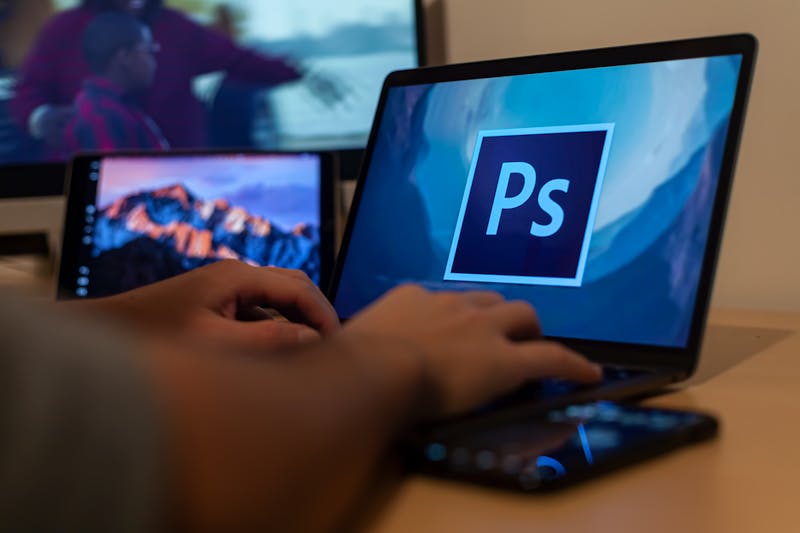
This is where most tutorials get it wrong. They tell you to "open your image" and start filtering. No. You need to think about the physical stencil first.
Create a new Photoshop document sized to your actual stencil dimensions:
- For a 22 × 28 inch stencil: set your canvas to 22" × 28" at 150–300 DPI
- For an 11 × 14 inch stencil: set your canvas to 11" × 14" at 150–300 DPI
The canvas size IS your stencil size. Everything that follows — the dot radius, the spacing, all of it — is relative to this canvas. If you do the halftone conversion on a random-sized image and then scale it later, your dots will be the wrong size and the stencil won't cut or spray properly.
Now drag your source photo into the canvas. Portraits with strong contrast work best — clear light-and-dark separation in the face. Flat, evenly lit images produce muddy halftones with no punch. Resize and position the image how you want it to appear on the final stencil.
Step 2: Remove the Background
Unless you want halftone dots covering the entire sheet (including the background behind your subject), you need to isolate the subject first.
Use whatever method works for your image — Photoshop's Select Subject tool is fast and usually good enough. Pen tool if you need precision. Quick Selection for complex edges. The goal is to isolate just the subject on a transparent or white background.
Delete or mask the background. You want the subject sitting on white — because white = no dots in the final halftone. The background disappears naturally.
Step 3: Black and White Conversion + Levels (This Is the Critical Step)
Now convert to black and white: Image → Adjustments → Black & White. This strips the color and gives you a grayscale image to work with.
Next — and this is the step that separates a good halftone from a bad one — open Levels (Image → Adjustments → Levels, or Ctrl/Cmd+L).
Here's what you're doing and why:
- Bring the black levels UP — drag the Output Levels black slider (bottom left) to the right. You're making the darkest blacks lighter, pushing them toward roughly 60% gray. This sounds counterintuitive, but it's essential: if your blacks stay at 100% black, the halftone dots in dark areas will be so large they touch and merge. You need space between every dot or the stencil can't be cut. 60% gray gives you dark enough dots to read as "black" from a distance, but small enough that they stay separated.
- Move the gray (midtone) slider toward the black side — this increases the contrast between your lights and darks. It pushes the midtones brighter, which means more of your image becomes "light" (small dots or no dots) and the remaining darks pop harder. The result is a punchier, more graphic image that translates well to halftone.
The most common mistake in halftone stencils is leaving the blacks too dark. If your dots touch in the dark areas, you can't cut between them and the whole thing becomes a solid blob instead of a halftone. Bring those blacks up to ~60% gray. Trust the process — it'll read as dark from viewing distance.
Step 4: Smart Object → Filter → Color Halftone
Before you apply the halftone filter, convert your layer to a Smart Object (right-click the layer → Convert to Smart Object). This is important because it lets you go back and tweak the halftone settings non-destructively. If you apply the filter directly, it's permanent and you'll have to undo and redo if the dots aren't right.
Now: Filter → Pixelate → Color Halftone.
The dialog has four settings that matter:
- Max Radius: This controls the size of the largest dots. For stencil work, keep this between 6 and 12 depending on your canvas size. Larger canvases (22×28") can handle radius 10–12. Smaller ones (11×14") should stay around 6–8. If the radius is too high, the dots become huge and the image loses detail. Too low and the dots are too small to cut.
- Screen Angles (Channels 1–4): Set all four channels to the same value. This is critical — different angles per channel creates color printing rosette patterns, which is not what you want for a single-color stencil. Keep them identical.
For the screen angle value:
- 0° produces dots in a perfect grid — horizontal and vertical lines. It looks mechanical and sterile. Some people want this, most don't.
- 40°–128° is the useful range. Anything in this zone gives the dots a more organic, diagonal arrangement that looks natural and reads better as a continuous image. Experiment within this range — every image responds differently.
- The sweet spot for most portrait stencils is somewhere around 45°–90°. Start there and adjust.
Because you used a Smart Object, the Color Halftone filter appears as a Smart Filter under your layer. You can double-click it to reopen the dialog and tweak the radius or angle until the dots look right. This is where you spend time dialing it in.

Step 5: Clean Up and Export
After the Color Halftone filter, you should see your image converted to a pattern of solid colored dots on white. A few cleanup steps:
- Threshold — if your dots have anti-aliased (soft) edges, apply Image → Adjustments → Threshold to snap everything to pure black or pure white. Stencils need hard edges, not gradients. Slide the threshold until the dots look clean and solid.
- Check dot separation — zoom to 100% and scroll through the darkest areas. If dots are touching or merging, go back to Step 3 and bring your blacks up lighter. This is the most common issue.
- Edge cleanup — erase any stray dots outside your subject area. Clean up the border.
Export for your cutting method:
- Laser cutter: Export as high-res PNG or BMP (pure black and white). Most laser software like LightBurn processes raster images directly — black areas get cut/engraved.
- Vinyl cutter (Cricut, Silhouette): You need vector paths. Use Illustrator's Image Trace → Black and White or Inkscape's Path → Trace Bitmap.
- Hand cutting: Print at 100% on paper, tape to mylar, cut through both with an X-Acto knife. Keep spare blades handy.

The Shortcut: Stencilizer by Schwingo
Everything above works. It's also a lot of steps with a lot of settings that can ruin your output. The Levels balancing act alone — getting the blacks light enough that dots don't touch but dark enough that they read — takes practice to nail consistently.
That's why the Stencilizer by Schwingo exists. It's a free Photoshop plugin built by the same artist behind TasteBueno that handles the entire conversion with real-time parameter adjustment.
What it does that the manual method doesn't:
- One-click stencil conversion — feed it a black-and-white image and it generates a cut-ready halftone pattern. No Levels juggling. No guessing radius values.
- Real-time preview — adjust exposure, dot radius, and angle with sliders and see the output update live. No flattening test files.
- Smart presets — built-in settings calibrated for actual cutting, not just screen display.
- Production-ready output — exports drop directly into laser cutter, vinyl cutter, or print workflows.
Download it free (two options):
- Adobe Creative Cloud Marketplace: Search "Stencilizer by Schwingo" on the Adobe Exchange, or find it in the Creative Cloud desktop app under Plugins → Marketplace.
- Direct from TasteBueno: Download from the Stencilizer product page.
Don't Want to Cut It Yourself? The Custom Stencilizer.
Maybe you followed this whole tutorial and realized you don't own a laser cutter. Or maybe you just want someone else to deal with cutting. Fair.
TasteBueno's Custom Stencilizer is a web-based tool where you upload any photograph, the system converts it to a halftone stencil pattern, and TasteBueno laser-cuts the physical stencil and ships it to your door within 24 hours.
No Photoshop. No plugin. No X-Acto knife. Upload, customize, order, spray.
So your options are:
- Full DIY: Follow the manual Photoshop method above. Cut it yourself.
- Plugin-assisted DIY: Use the free Stencilizer plugin to generate the file, then cut it yourself or send to a laser cutter.
- Done for you: Upload to the free halftone stencil generator and get a finished, laser-cut stencil delivered.

Tips from Someone Who's Cut a Thousand of These
- Canvas size = stencil size. Set it first. Don't resize after halftoning — it destroys dot integrity.
- Blacks at ~60% gray. The single most important thing. If dots merge in dark areas, the stencil is useless. Lighter blacks = separated dots = cuttable stencil.
- Smart Object before filtering. Non-destructive halftone means you can tweak radius and angle without starting over.
- All screen angles the same. Different angles per channel is for CMYK printing, not single-color stencils.
- Test at actual size. Print a small section at 100% before committing to a full sheet. Dots that look right on screen at 25% zoom can be completely wrong at real scale.
- 4-mil mylar for cutting. Standard for single-layer halftone stencils. Thinner flexes during spray. Thicker is harder to cut. 7-mil if you're hand-cutting.
- Low-pressure spray cans. Montana BLACK or MTN 94. Light coats. 8–12 inches from the surface. Let each coat tack before the next.
From Screen to Street
The process starts on a screen and ends on a wall, a canvas, a deck, a shirt — whatever surface you want to mark. Whether you go full manual, use the Stencilizer, or upload to the free halftone stencil generator — the result is a physical stencil that puts images on surfaces in a way no print, no screen, and no AI can replicate.
Now go cut something.
Sources & Resources
- Stencilizer by Schwingo — Free Photoshop Plugin for Halftone Stencils (TasteBueno)
- Stencilizer by Schwingo — Adobe Creative Cloud Marketplace
- Custom Stencilizer — Upload a Photo, Get a Laser-Cut Stencil Shipped (TasteBueno)
- Wikipedia — "Halftone" (History and Technical Background)
- Adobe — "Convert Between Color Modes in Photoshop"
- LightBurn — Laser Cutter Software
- Inkscape — "Trace Bitmap" Tutorial (Free Vector Tracing)
0 comments